

Technical Information
General Information
Technical Requirements
- How can I ensure that my computer is set up for the live video stream?
- Are there recommended web browsers and internet speed?
Troubleshooting Tips
- What should I do if the live stream does not start or is breaking up?
- I’m experiencing issues with the audio. The timer on the player control bar is moving but I don’t hear any sound. What should I do?
- I’m experiencing issues with the video. What should I do?
- The stream isn’t working but I’m not sure what the problem is. What should I do?
- Are there standard terms I can use to describe the issues I’m seeing?
Day of the Live Stream
- Is there a checklist I can follow on the day of the live stream?
- How do I make the stream full screen?
- Can I pause and rewind the live stream?
Contact Information
General Information
How I do create a Siddha Yoga Online Account?
In order to participate in live stream events on the Siddha Yoga path website, you may need to create and sign into your Siddha Yoga Online Account. Please create your new account in advance of the event, as it will facilitate easeful participation.
- Click on the “Sign In” link at the top right corner of the page.
- Click on “To create a new account, click here” located above the username box.
- Fill in the requested information, and click on “Create Account.”
- Open the email sent to your email address requesting that you validate your new account.
- Click on the link in the email. Your account will be ready.
- Click on the “Sign In” link again to sign in.
Technical Requirements
How can I ensure that my computer is set up for the live video stream?
You can optimally prepare your equipment and work space for the live video stream by taking the following steps:
Equipment
- Switch on your computer a few days before the live stream so that any pending updates are completed.
- Ensure the browser you use is the latest version (more information at
https://www.computerhope.com/issues/ch001388.htm). - Assess your internet speed with a speed test.
- Here are suggested links for speed tests:
http://www.speedtest.net/
https://www.google.com/search?q=google+speed+test
https://fast.com/ - Contact your service provider for assistance if your tested speeds are very different from what you expect from your provider.
- Here are suggested links for speed tests:
- If you have extra security in your computer such as a firewall and you are unable to receive the stream, check that ports 80 (HTTP) and 443 (HTTPS) are not blocked.
Workspace
- Ensure you can log in to your computer and Siddha Yoga Online Account a few days before the event. You may find it helpful to write your username and password on a piece of paper so you have it at hand on the day of the live stream.
- If registration is required, please register for the event well in advance.
- Ensure you have a means of contacting the webmaster at [email protected] for support during the event.
Are there recommended web browsers and internet speed?
The recommended internet browsers are Firefox, Safari and Google Chrome.
Note: At this time, please do not use Internet Explorer as there are persistent issues with live streaming.
The minimum recommended internet speed is as follows:
- at least 3 Mbps for 480p
- at least 4 Mbps for 720p
- at least 5 Mbps for 1080p
For lower internet speeds, you will be able to participate with lower video resolution, and you may experience pauses or a breakup of the stream.
Troubleshooting Tips
What should I do if the live video stream does not start or is breaking up?
Wait for ten seconds to see if the live stream video player recovers on its own. After ten seconds, reload the live stream page on your browser by pressing the following key(s):
- Press F5 if you have a Microsoft Windows computer.
- Press Cmd+R if you have an Apple computer.
I’m experiencing issues with the audio. The timer on the player control bar is moving but I don’t hear any sound. What should I do?
Check the audio settings on your computer or mobile device to ensure the following:
- Your computer is not muted
- External speakers are turned on and the volume is up
You can check if the volume of your device is set up correctly by playing another video such as Shri Hanuman Chalisa.
I’m experiencing issues with the video. What should I do?
 If the video is buffering, freezing, or skipping (see descriptions below for possible video errors), check your stream quality on the settings icon
  in the lower right corner of the player (see screenshot). A dropdown menu showing your current visual quality (next to “Auto”) and other resolutions (240p, 480p, 720p, 1080p) will appear.
By default, the video player will be set to “Auto” for the video quality, and this setting can be left alone if you are not experiencing any issues with the stream.
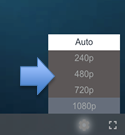 You can set the visual quality of the stream to a low setting, starting at the 480p quality setting in the lower right menu bar. If you have no problems with that, you can try raising the quality to 720p and so on. Otherwise stay with the highest quality that you can view without buffering, freezing, or skipping.
Note: at 480p and below, the visual quality will be noticeably reduced.
If the video is still buffering or pausing too often, you can also switch to only audio. To do so, click the headphones icon in the lower right corner of the player (see screenshot).

To switch back to video from audio, click the settings icon in the lower right corner of the screen.

The stream isn’t working but I’m not sure what the problem is. What should I do?
If the stream does not start or starts but is buffering, take the following steps:
- Reduce the visual quality of the stream (see instructions above).
- Refresh the webpage and relaunch the stream by clicking on the page refresh icon
 located on the top left of the menu bar.
Are there standard terms I can use to describe the issues I’m seeing?
Visuals
- Blank screen – no video is displayed.
- Buffering – the video is playing and then stops, followed by a pause and a spinning icon indicating a wait.
- Freezing – the video freezes in place.
- Skipping – the video skips over moments and isn’t playing smoothly.
Audio
- Too low – audio is low and requires maximum volume to be heard (if at all).
- Drop outs – the audio is not smooth/there are strange pauses and silences.
Day of the Live Stream
Is there a checklist I can follow on the day of the live stream?
Follow these steps before the satsang begins to ensure you can participate in the live stream from the beginning:
- Confirm that you are using Google Chrome or Firefox.
- Go to the Siddha Yoga path website: www.siddhayoga.org.
- If the event requires a login, click on the “Sign In” link located in the top right corner. Enter your username and password.
- If the event requires registration, make sure you have registered. If you have not done so, click on the “Registration” button on the page of the event and follow the instructions listed on the page.
- Click on the visual button with the title of the event or on the “click here” link. This will lead you to the “Participate” page.
- Scroll down the page where you may read the terms and conditions by clicking on the link.
- Click “PLAY” in the player.
- Make sure the audio is turned on.
- If you are having difficulties (the live stream does not start or the sound is breaking up), wait for 10 seconds to see if the live stream video player works again on its own. If this does not work, refresh your page.
- If your video quality is not good, e.g., it buffers too often or pauses frequently, change the quality to “Auto” or manually reduce the quality.
- If you are still having difficulties after these steps, read the information in the question below, “I am still experiencing technical difficulties. What should I do?”
How do I make the stream full screen?
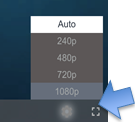 To make the stream full screen, click on the “full screen” icon.
To exit full screen, press the “ESC” key.
Can I pause and rewind the live stream?
You will not be able to pause, replay, or rewind the stream.
If attempted, you will need to reload and restart the stream, which will bring you to the current place in the live stream (see instructions above).
Contact Information
I am still experiencing technical difficulties. What should I do?
For additional inquiries and support, email [email protected] and include the following information:
- Your name
- Geographic location – city, state, country
- Event you are participating in
- Browser version
- Internet speed as well as ping and jitter measurements (use the speed test websites listed above, which provide information about ping and jitter measurements).
- Detailed description of the issue(s) you’re experiencing based on the video and audio problems defined above.